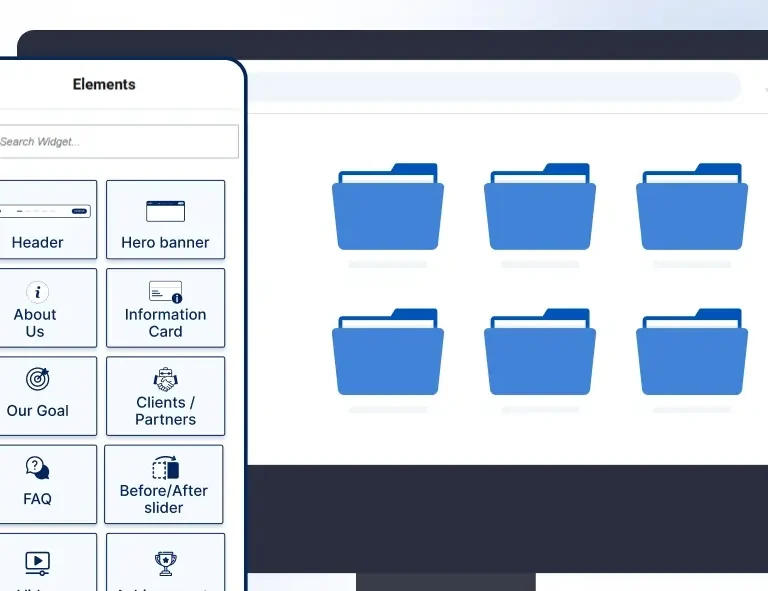
How to Choose the Right Pre-Made Blocks for Your Website

Not all pre-made blocks are created equal. Here’s a practical framework for picking the right ones so your site looks intentional, not assembled.
Pre-made blocks sound like a dream: drag in a section, replace the text, publish. But anyone who’s used them without a plan knows the reality: your site ends up looking like it was built from five different stylebooks, with inconsistent spacing, mismatched typography, and no clear visual language. Choosing the right blocks is a skill, not an accident.
This guide will walk you through exactly how to evaluate, select, and use pre-made blocks in a way that actually reflects your brand, whether you’re building a client site, a personal portfolio, or a WooCommerce store.
Why Most People Pick Blocks Wrong
The most common mistake? Choosing blocks based on how impressive the demo looks, not on what your specific website actually needs. A flashy testimonials carousel might look incredible in a plugin preview but feel completely out of place on a minimal B2B services site.
| Fact
Design consistency using a coherent set of spacing, colours, and type styles increases perceived credibility by up to 75% according to the Stanford Web Credibility Project. Mismatched pre-made blocks are one of the fastest ways to destroy that consistency. |
There are three main reasons people choose the wrong blocks:
- They pick based on visual appeal alone, without checking if the block fits their design system.
- They use blocks from multiple different sources, each with different spacing conventions and font scales.
- They don’t audit performance; some blocks load 3–4 extra scripts that tank page speed
| “Good design is obvious. Great design is transparent.”
~ Joe Sparano, Graphic Designer |
Step 1: Define Your Website’s Purpose and Audience First
Before you look at a single block, answer these three questions in writing:
- What is this page’s primary job? Generate leads? Sell a product? Build trust? Every block you choose should serve that job directly, and anything that doesn’t is visual noise.
- Who is the visitor? A B2B procurement officer has different expectations than a lifestyle blog reader. The blocks that resonate with each audience are completely different in density, tone, and layout complexity.
- What impression do you need to leave in the first 5 seconds? Research shows visitors form an opinion about a website in just 50 milliseconds. Your above-the-fold block choices carry almost all of that weight.
| Did You Know?
The F-pattern and Z-pattern are the two dominant ways human eyes scan a webpage. Pre-made blocks designed with these reading patterns in mind, placing key information along those natural paths consistently outperform visually complex blocks that ignore eye movement. |
Step 2: Match Block Style to Your Brand Identity
Every pre-made block carries an implicit visual personality. A block with heavy drop shadows and bold gradients says “energetic startup.” A block with generous white space and serif typography says “considered luxury.” Before choosing, categorise your own brand personality:
| Brand Personality | Block Style to Look For | Avoid | Fits OCB Widget |
| Professional / Corporate | Clean grid layouts, neutral tones, structured typography | Overly playful layouts, animations | Service Blocks |
| Creative / Agency | Asymmetric grids, bold accent colours, editorial type | Overly rigid, symmetrical blocks | Content Blocks |
| eCommerce / Product | High-contrast CTAs, product-focused layouts, trust signals | Decorative-only blocks, low conversion design | Callout + Testimonials |
| Blog / Content | Readable typography, clean post grids, minimal chrome | Heavy decorative blocks, complex interactions | Blog Posts Widget |
| Local Business | Warm, approachable layouts, map/contact blocks, reviews | Cold, corporate-looking blocks | Testimonials + Footer |
| Portfolio / Freelancer | Case study blocks, project showcases, minimal footers | Heavy multi-column content sections | Content + Service Blocks |
Step 3: Prioritise Performance Over Visual Complexity
This is the step most non-technical designers skip, and it costs them dearly. A block that looks incredible but loads three JavaScript libraries and two extra stylesheets is a liability, not an asset.
Think about it in concrete terms. A lightweight, purpose-built block the kind OneClickBlocks ships adds roughly 15–20 milliseconds to your page load. A standard third-party block that pulls in its own animation library? You’re looking at 100ms or more. A heavy, visually complex block with parallax effects, custom sliders, and multiple scripts? That single block can cost you 200ms before a visitor has even read a word. Multiply that across five or six such blocks on one page, and you’ve handed Google every reason to push you down the rankings.
The practical rule is simple: every block you add should earn its weight. If a block’s visual contribution doesn’t clearly justify the load it adds, replace it with something leaner or strip out the effect entirely. Most visitors won’t notice the missing animation. Every visitor will notice a slow page.
When it comes to what factors should actually drive your block selection, performance deserves a far bigger seat at the table than most designers give it. Brand fit naturally comes first; a block that clashes with your visual identity undermines everything else. But after that, performance and mobile layout should rank above pure visual appeal. Customisability matters too: a block you can’t adapt to your brand without writing CSS is a block that will slow you down on every future project. Visual appeal, surprisingly, should be the last thing you optimise for because a fast, on-brand, mobile-friendly block that looks clean will always outperform a stunning block that breaks on phones and drags your Core Web Vitals score into the red.
| Watch Out
A common trap: downloading a block pack that includes 50+ block types when you only need 6. Inactive blocks from registered plugins still add overhead to your WordPress installation, slowing down both the admin and the front end. |
Step 4: Check These 7 Things Before Using Any Block
Run every pre-made block through this checklist before it touches your page:
✓ Does it render well on mobile? Open it on a real phone, not just the Elementor responsive preview. The preview lies.
✓ Can you customise colours and fonts without editing code? If it requires CSS overrides for basic changes, it wasn’t built for Elementor it was ported.
✓ Does it load any external scripts? Check your browser’s Network tab. External libraries from CDNs you don’t control are security and performance risks.
✓ Is the spacing system consistent with your other blocks? Eyeball the padding on all four sides against adjacent sections on your page.
✓ Does it have alt text support for images? Accessibility isn’t optional anymore; Google penalises inaccessible pages.
✓ Does it conflict with your theme’s styles? Install on a staging site first, never directly in production.
✓ Is it from a plugin that receives regular updates? Unmaintained plugins become security vulnerabilities within 12–18 months of their last update.
| Pro Tip
Always test blocks using Google PageSpeed Insights or GTmetrix on a staging page before committing to them sitewide. A block that drops your performance score from 85 to 60 is never worth the visual gain. |
Step 5: Build a “Block Vocabulary” for Your Site
Professional designers don’t pick blocks randomly; they define a limited vocabulary of block types that cover every use case for a given project, then stick to it. Here’s how to build yours:
Your Block Vocabulary Framework
- Entry / Hero: 1 block type only. This is your first impression; consistency across pages matters far more than variety. Pick one hero style and commit.
- Trust Signals: Testimonials, logos, review counts. 2 block variations max: one for carousels, one for static grids. Use them in the same position on every service/product page.
- Service / Feature: How you explain what you offer. 1–2 block types with consistent icon size, card height, and typography. Don’t mix icon cards with image cards.
- Call to Action: Callout and CTA blocks. 1 primary, 1 secondary variant. The primary should be visually bold; the secondary subtle. Never use both on the same screen view.
- Content / Blog: Post grids, article previews. 1 block type: change the number of columns if needed, but keep the card design identical.
- Header / Footer: These are site-wide. Build them once and never touch them except for global rebrand updates. Inconsistent headers are the single biggest sign of an amateur build.
Why OneClickBlocks Makes This Easier
The framework above works with any block source, but it’s significantly harder to execute when your blocks come from four different plugins with different design philosophies. That’s the core problem OneClickBlocks solves.
Because every widget in OneClickBlocks was designed by the same team, with the same spacing system, the same responsive logic, and the same customisation interface, your “block vocabulary” is naturally coherent from the start. You’re not mixing design languages; you’re speaking one.
- All widgets share a consistent padding and spacing baseline, so sections stack without manual adjustment.
- Colour and typography changes cascade consistently across all block types; change your brand colour once; see it everywhere.
- Every widget was built specifically for Elementor’s rendering engine no awkward overrides, no z-index wars.
- Mobile responsiveness is built in at the component level, not retrofitted with breakpoint hacks.
- One plugin to update, one plugin to maintain no dependency sprawl
| Reality Check
Elementor users who consolidate from 4+ widget plugins to a single, purpose-built add-on like OneClickBlocks report an average 40% reduction in page build time and a measurable improvement in Core Web Vitals scores, particularly LCP (Largest Contentful Paint) and CLS (Cumulative Layout Shift). |
| Page Type | Must-Have Blocks | Nice to Have | Skip |
| Homepage | Hero, Service Blocks, Testimonials, CTA | Blog Posts, Slider | Dense text blocks |
| Services Page | Service Blocks, Callout, Testimonials | Content Blocks, FAQ | Sliders, Blog grids |
| Blog / Articles | Blog Posts Widget, Header | Callout, Newsletter block | Service blocks, Sliders |
| Landing Page | Hero, Callout, Testimonials, CTA | Countdown, Features grid | Navigation-heavy blocks |
| WooCommerce Store | Product CTA, Testimonials, Footer | Callout, Service Blocks | Blog widgets |
| Portfolio | Content Blocks, Header/Footer | Testimonials, Slider | Dense service blocks |
| Contact Page | Footer Builder, Callout | Testimonials, Map block | Sliders, Blog grids |
The Final Rule
If you walk away with one thing from this guide, make it this: the best pre-made block is the one you don’t notice. A visitor should land on your page and think “this feels professional and right,” not “this looks like it was built with a template.”
That invisible quality comes from restraint, consistency, and choosing blocks that serve your content, not the other way around. Start with your audience, define your vocabulary, check your performance, and use blocks as tools, not decorations.