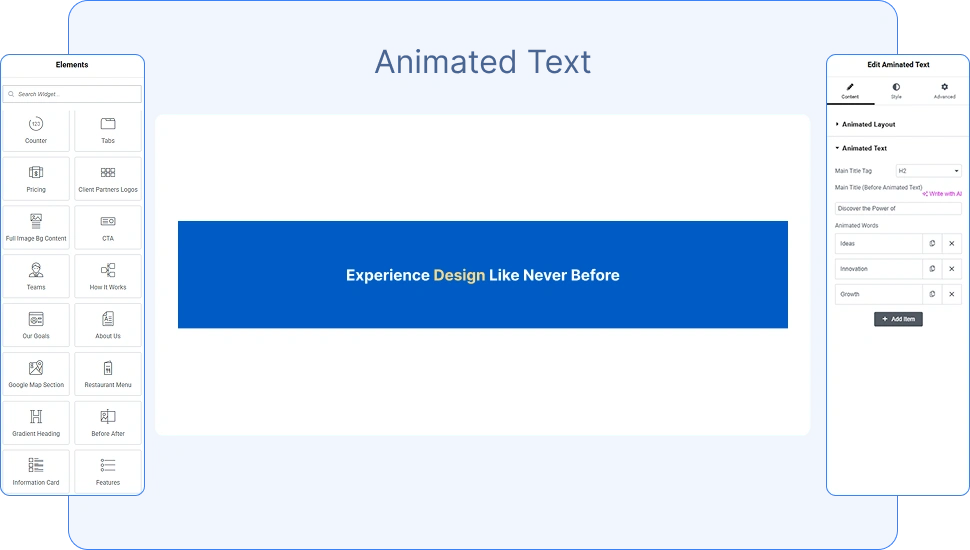
The Animated Text widget by OneClickBlocks lets you create dynamic, eye-catching headings in Elementor by cycling through a list of words with smooth animations. Instead of a static heading, you can highlight key terms that automatically rotate — making your hero sections, banners, and landing pages more engaging and conversion-focused. This widget is fully beginner-friendly and requires zero coding to set up.
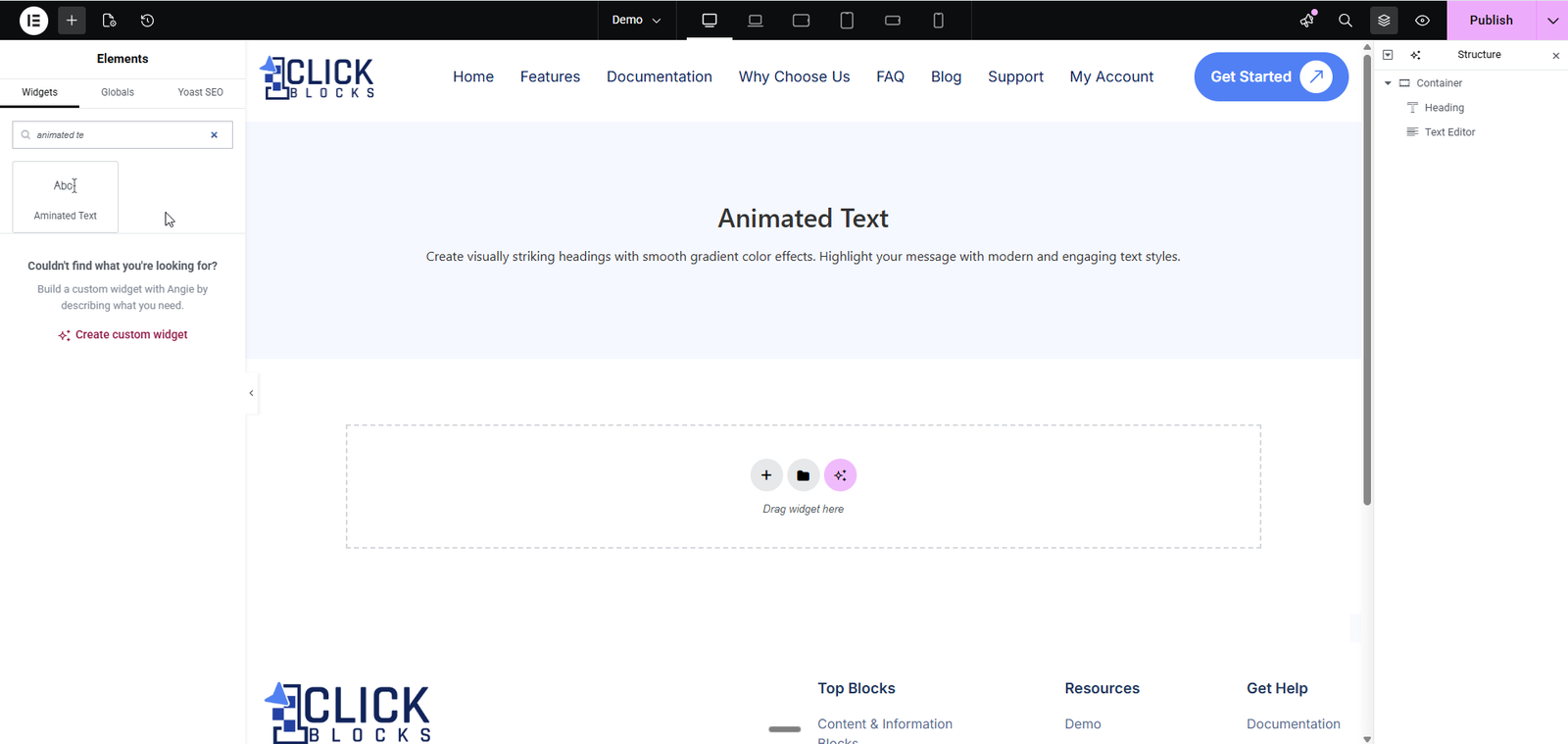
Step 1. Open your page in the Elementor Editor by clicking Edit with Elementor from your WordPress dashboard.
Step 2. In the left panel, click on the Search Widget field and type anim or Animated Text.
Step 3. Locate the Animated Text widget from the search results. It will appear under the OneClickBlocks widget group.
Step 4. Drag and drop the widget into any container or section on your page canvas.
Step 5. The widget will be placed instantly and the left panel will switch to the Edit Animated Text settings, with a live preview visible on the canvas.
All content options are found under the Content tab in the left Elementor panel when the widget is selected. The Content tab is divided into two sections: Animated Layout and Animated Text.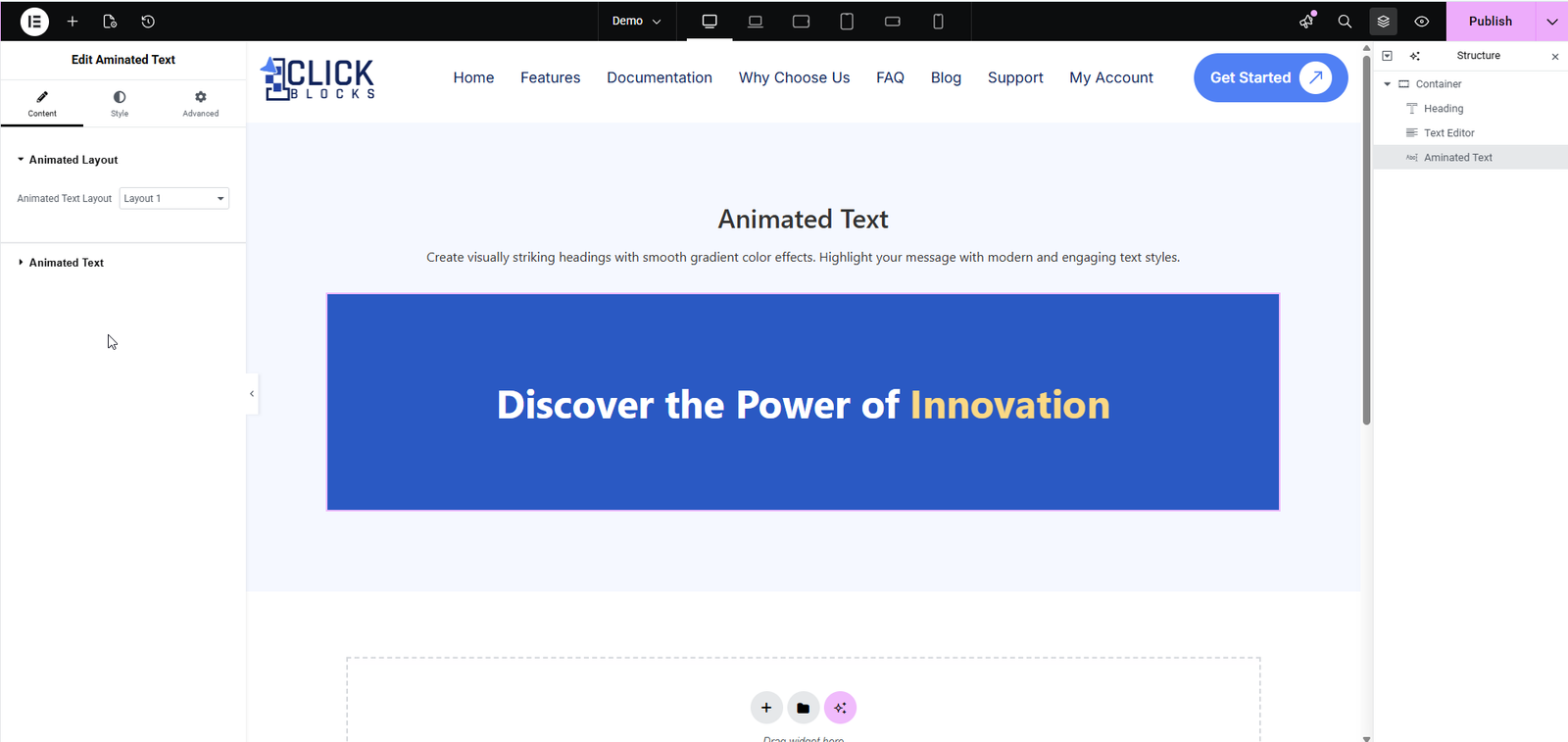
Choose the animation style for your text. This is a dropdown field that offers multiple layout options (e.g., Layout 1, Layout 2, Layout 5, and more). Each layout applies a different visual animation effect to the cycling word — such as a highlighted background banner, a fade-in style, or a typewriter effect on a clean white background. The canvas preview updates in real time as you switch layouts, so you can choose the style that best fits your design.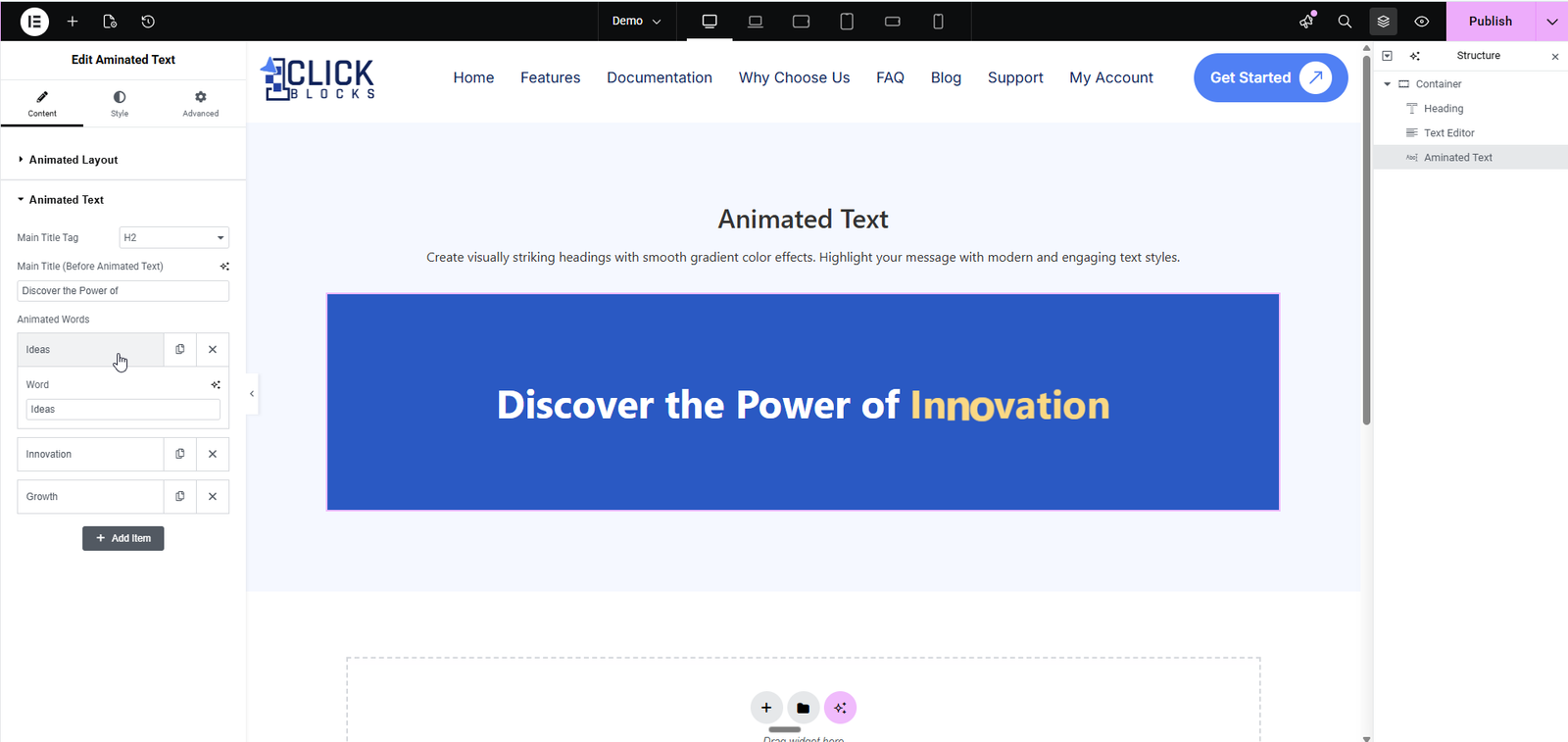
Sets the HTML heading tag for the animated heading element. Use this dropdown to select the appropriate tag for your page hierarchy — such as H1, H2, or H3. For most hero sections, H2 is recommended unless this is the primary heading of the page.
This is the static text that appears before the animated word. Type any text you want to display at the start of the heading. For example, entering Discover the Power of will display that phrase followed by your cycling animated words.
This is a repeater field where you add all the words or phrases you want to cycle through in the animation. Each item in the list becomes one animated word. You can add as many words as needed using the + Add Item button. In the demo, the words Ideas, Innovation, and Growth are used as examples. Each item also has a Word sub-field that lets you preview and edit the individual word label.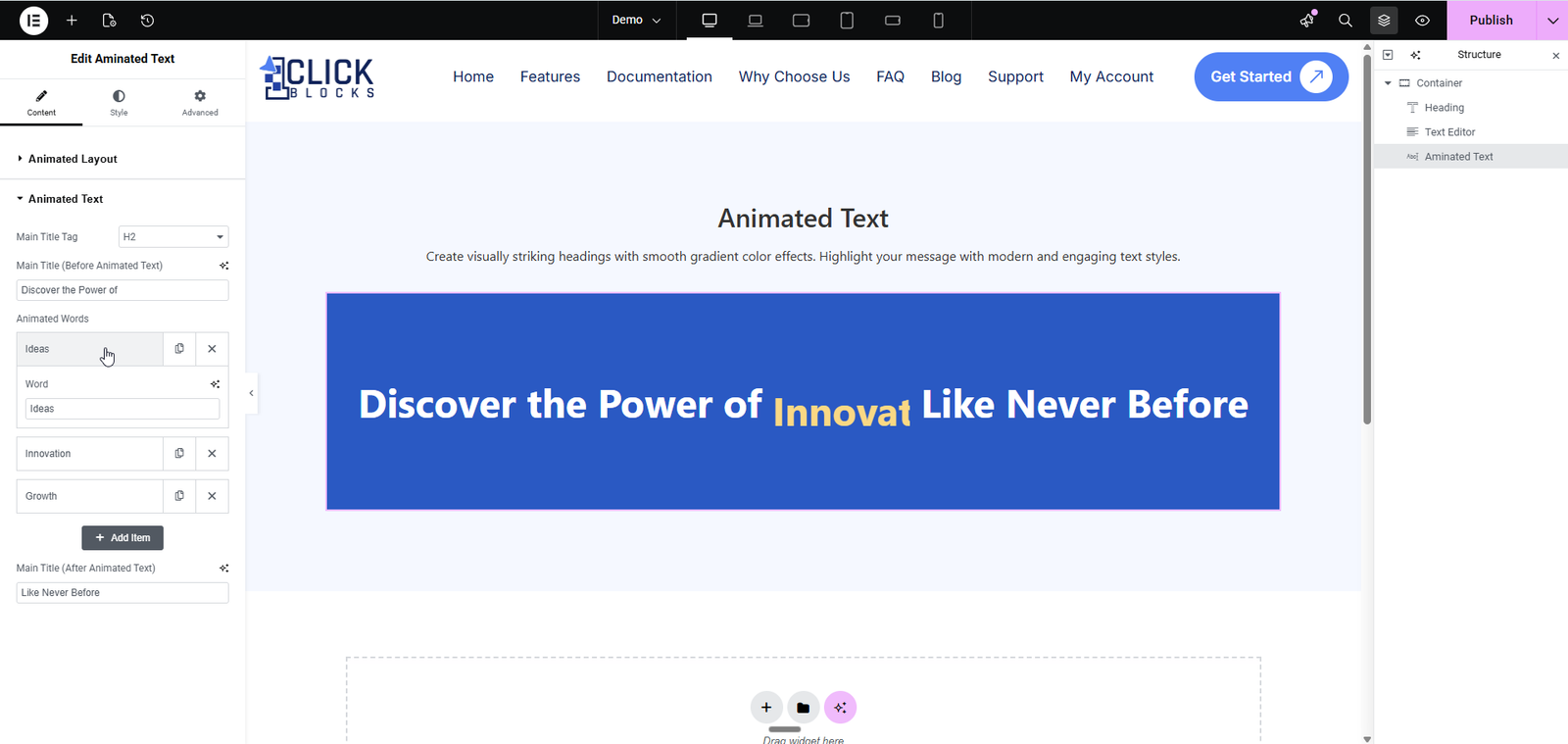
This is the static text that appears after the animated word. Use this field to complete your heading sentence. For example, entering Like Never Before would produce the full heading: Discover the Power of [animated word] Like Never Before. This field is optional — leave it empty if your animated word appears at the end of the heading.
Every change you make in the settings panel is instantly reflected on the Elementor canvas without needing to save or refresh. You can see the animated word cycling in real time, making it easy to configure the exact look and feel before publishing.