
The OneClickBlocks Skill Bar Widget is a powerful Elementor widget that lets you showcase your professional skills and competencies in visually striking formats. With multiple pre-built layouts and smooth animated progress bars, you can display skills with percentage indicators, circular progress charts, or profile-based skill presentations — all without writing a single line of code. Use the Skill Bar widget to build impressive skill sections that enhance your portfolio, resume, or team showcase pages.
Follow these simple steps to activate and enable the Skill Bar widget in your OneClickBlocks plugin:
1. Go to your WordPress Dashboard and navigate to OneClickBlocks → Elements.
2. Look for the Creative Elements section and find the Skill Bar Widget.
3. Toggle the switch to Enable the widget.
4. Click on the Save Settings button to confirm the activation.
Once activated, the Skill Bar widget will appear in your Elementor editor under the OneClickBlocks widgets panel and you can drag it onto any page or post to start building.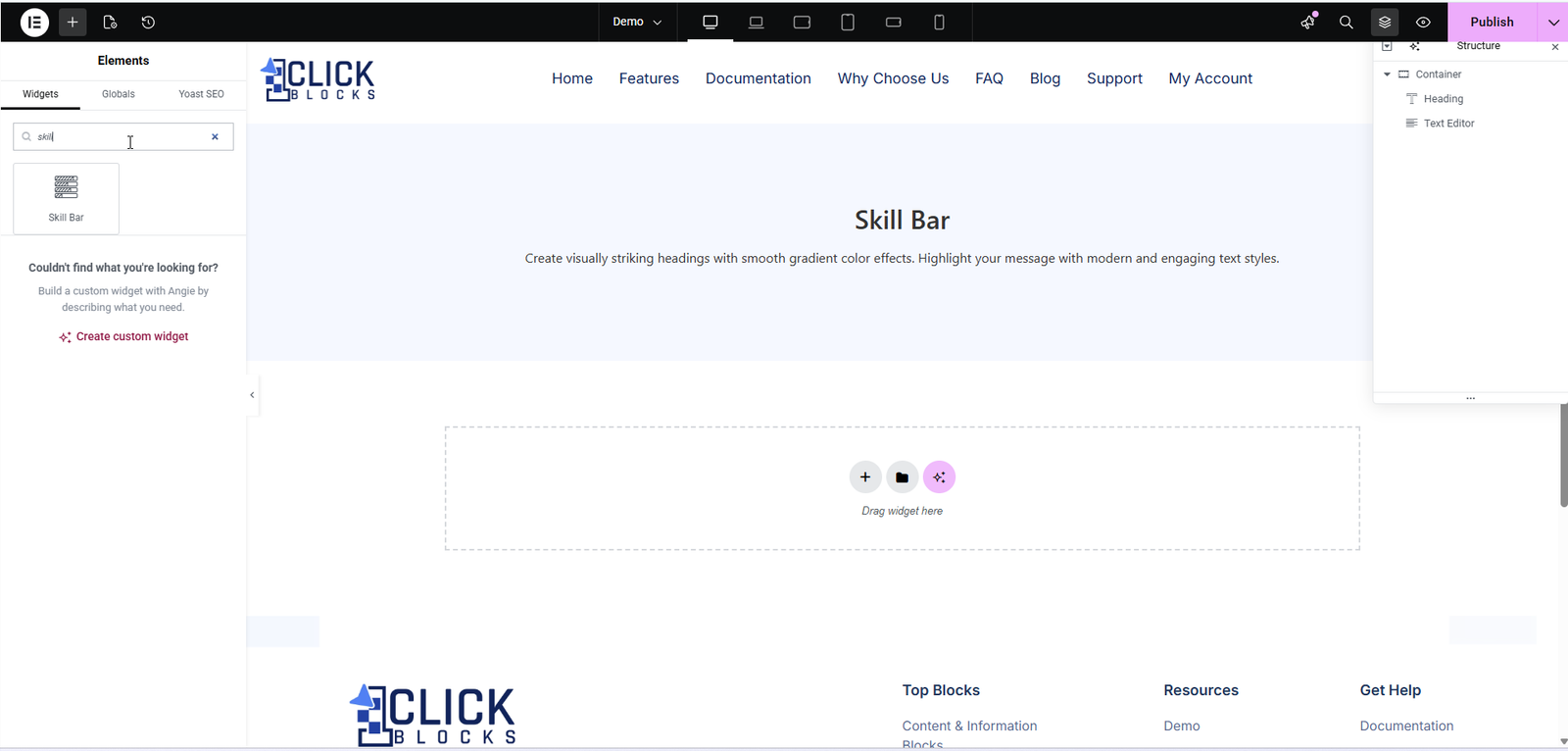
Select your preferred layout style from the Select Layout dropdown. The Skill Bar widget offers five distinct layouts:
• Layout 1 – Two-column design with skill title and description on the left, animated progress bars on the right
• Layout 2 – Blue background with skill bars on the left side and description plus call-to-action button on the right
• Layout 3 – Centered layout with title and descriptions, displaying skills as circular progress indicators at the bottom
• Layout 4 – Professional profile card style with profile image and details on the left, skill bars on the right over a blue background
• Layout 5 – Modern profile layout with profile image on the left and skill title with description and bars on the right
Switching between layouts updates the live preview instantly without deleting any of your entered content.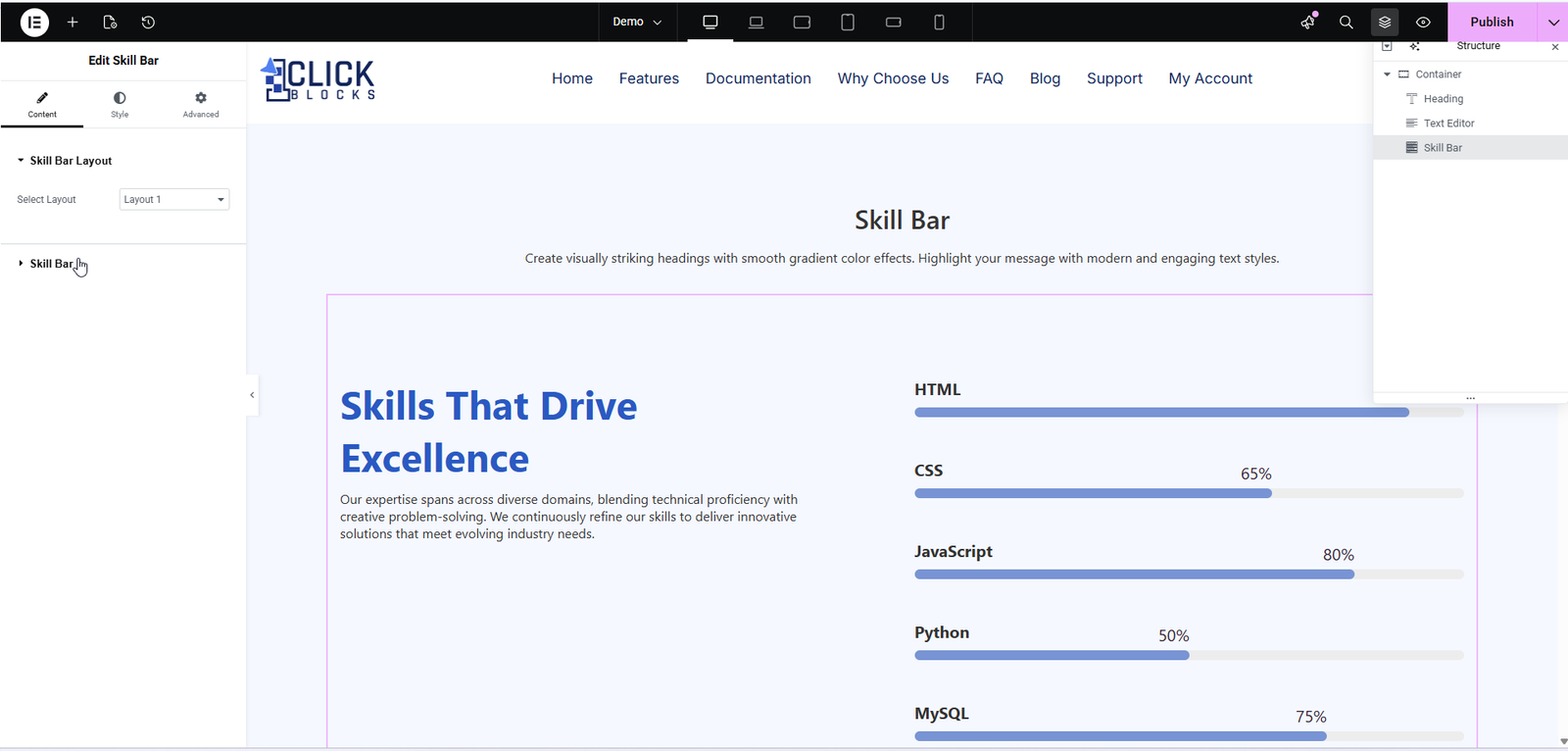
Toggle this option to Show or Hide the left-side content section. This is useful when you want to display only the skill bars without additional descriptive content on the left side of your layout.
Toggle this option to Show or Hide the right-side content section. Use this to create a focused, skill-bar-only display or to adjust the layout based on your design needs.
Select the HTML heading tag (H1, H2, H3, etc.) for your main skill section heading. This setting is important for SEO and proper semantic HTML structure. The default is H2.
Enter the primary heading for your skill section — for example, Skills That Drive Excellence or Our Expertise. This title appears prominently in the skill section and helps visitors understand what content they are viewing.
Add a detailed description or introductory text for your skill section. This text typically explains your overall expertise, qualifications, or approach. Use the rich text editor to format your text with bold, italic, or other styling options. This field supports multiple lines and is particularly useful in layouts that emphasize descriptive content.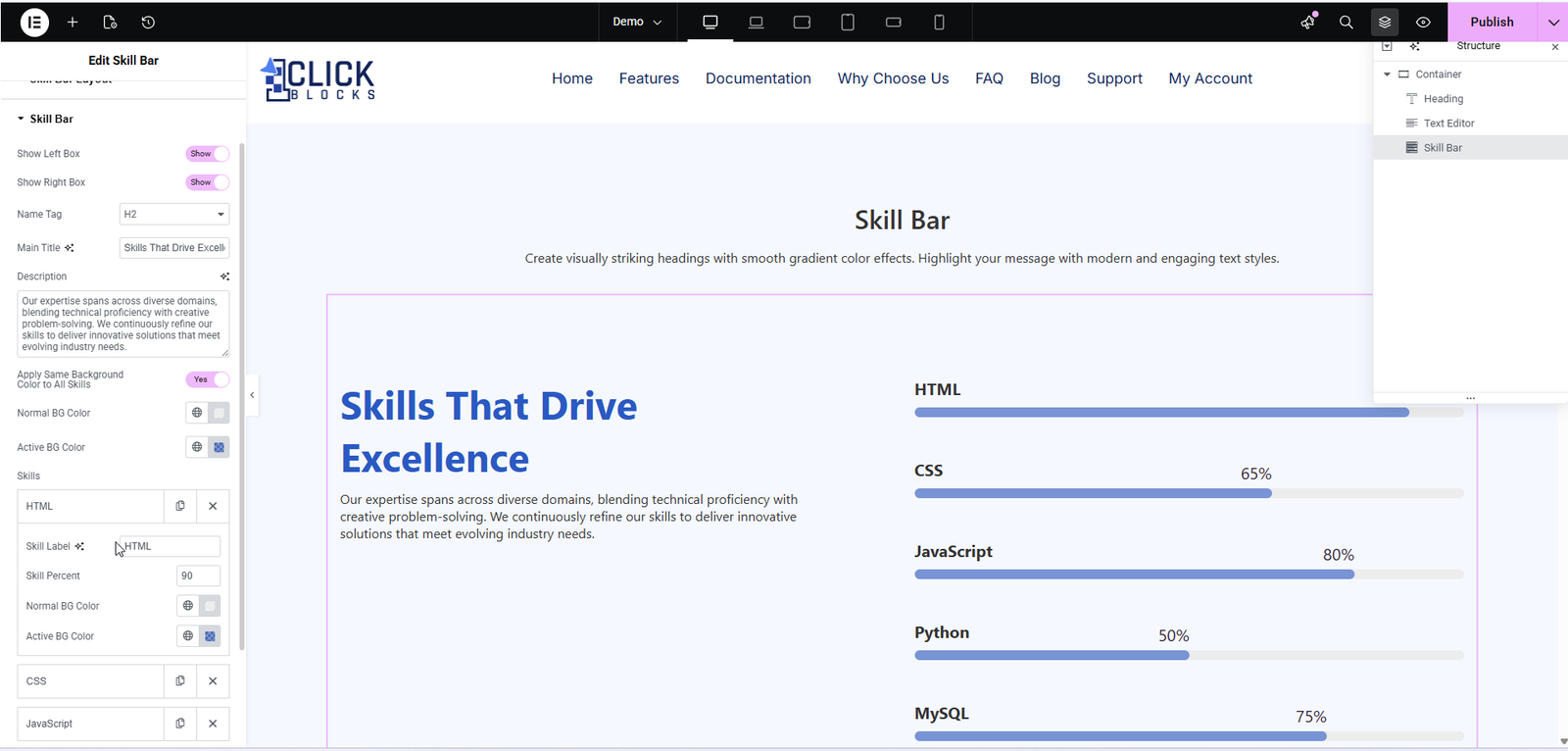
Select the HTML heading tag for the skills heading within the widget. This allows you to control the semantic hierarchy of your skill section. The default is H2, but you can adjust it based on your page structure.
Enter the title for your skills display section — for example, Strength in Skills, Technical Expertise, or Core Competencies. This title appears in layouts that include a dedicated skills section.
Toggle this setting to Yes to apply a uniform background color to all skill bars, or No to customize individual skill bar colors. When set to Yes, all skills share the same background styling for a cohesive look.
Choose the background color for the inactive/unfilled portion of the skill bars. This color represents the empty space of the progress bar before the skill percentage is filled. Click on the color picker to select your preferred shade.
Choose the background color for the active/filled portion of the skill bars. This color represents the skill percentage that has been achieved. Click on the color picker to select a contrasting color that makes the filled portion stand out clearly.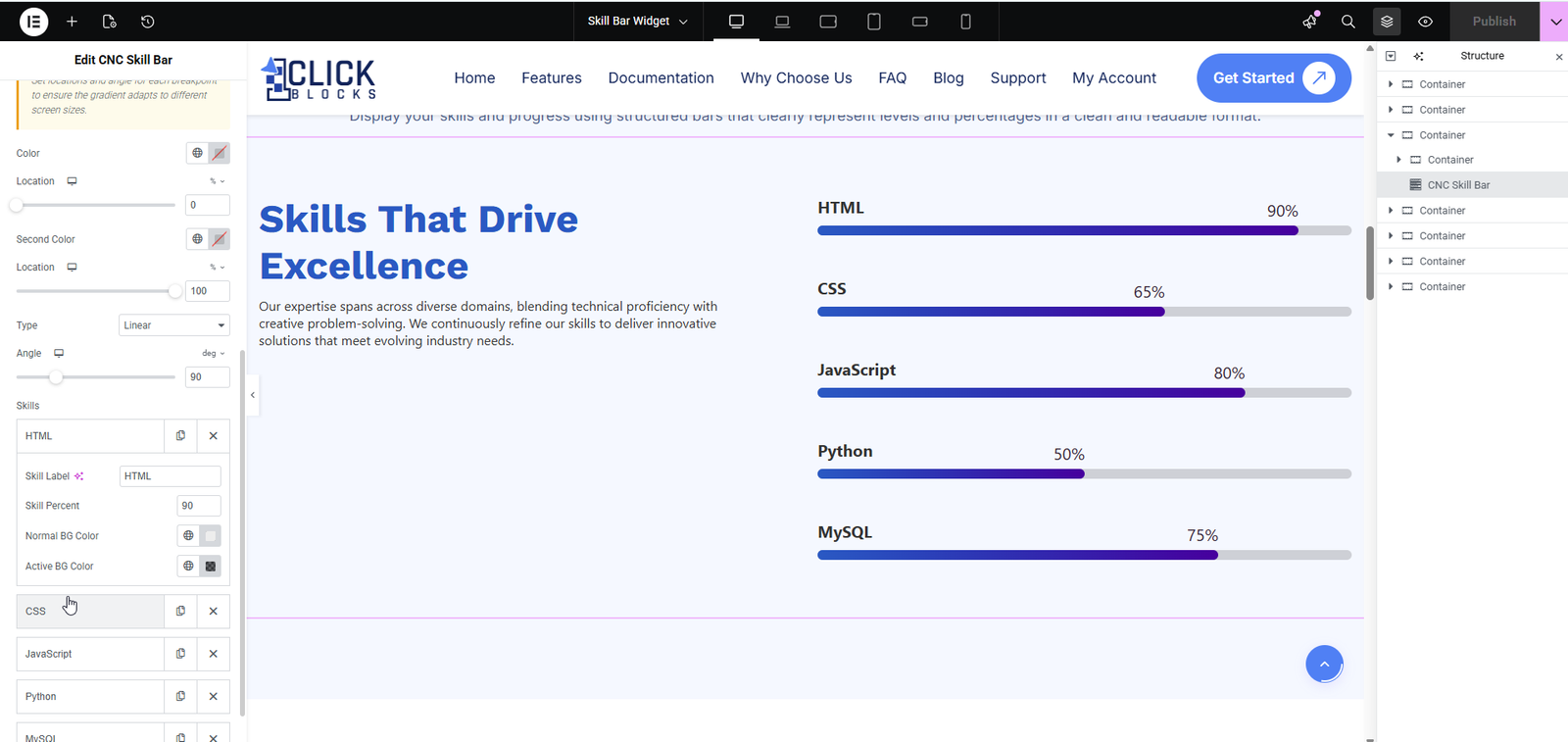
Add and manage individual skill entries using the repeater field. For each skill, you can:
• Enter the Skill Name — for example, HTML, CSS, JavaScript, Python, MySQL
• Enter the Skill Percentage — a numeric value representing proficiency level, typically between 0-100
Each skill item includes icons to Edit, Duplicate, or Delete the entry. Use the + Add Item button at the bottom to add more skills to your list.