
The OneClickBlocks Our Goals Widget is a powerful Elementor widget that lets you beautifully display your company’s Mission, Vision, Values, and Goals in a structured, professional layout — no coding required. With multiple pre-built design layouts, you can present your organization’s purpose and direction in a visually engaging way that looks great on all devices. Whether you need an alternating row style, a card grid, a split panel, or a photo-based column layout, this widget gives you full flexibility right inside the Elementor editor.
Go to your WordPress Dashboard and navigate to OneClickBlocks → Elements. Find the Our Goals Widget, toggle it to Enable, and click Save Settings.
Next, open any page in the Elementor Editor. In the left panel, click the “+” (Add Elements) button in the top toolbar to open the Elements panel. Type “our g” in the widget search bar. The Our Goals widget will appear in the results. Drag and drop it onto your page canvas into an empty container. The Edit Our Goals panel will open on the left with three tabs — Content, Style, and Advanced.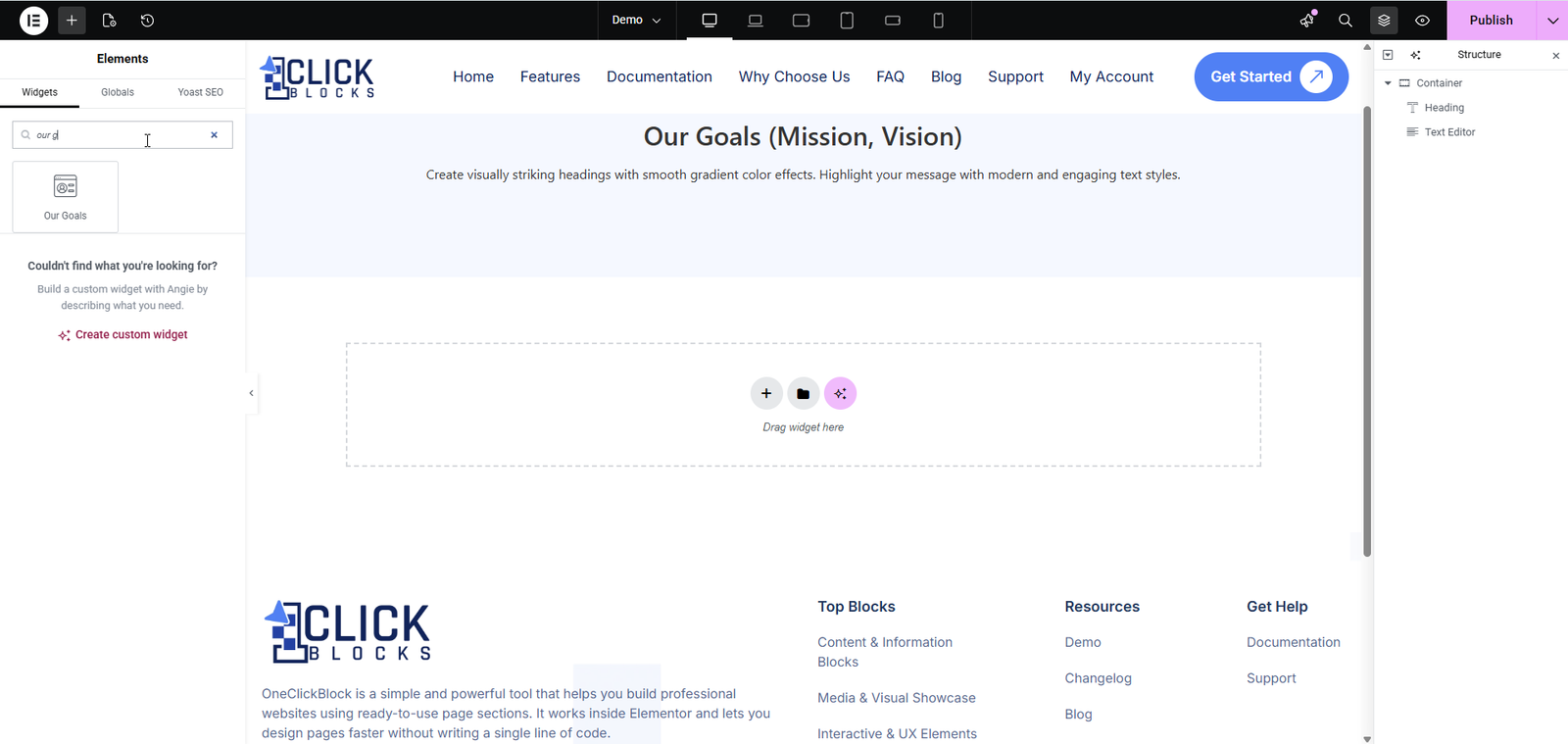
All content configuration is done inside the Content tab of the Edit Our Goals panel. The settings are organized into two sections: Our Goals Layout & Content and Content.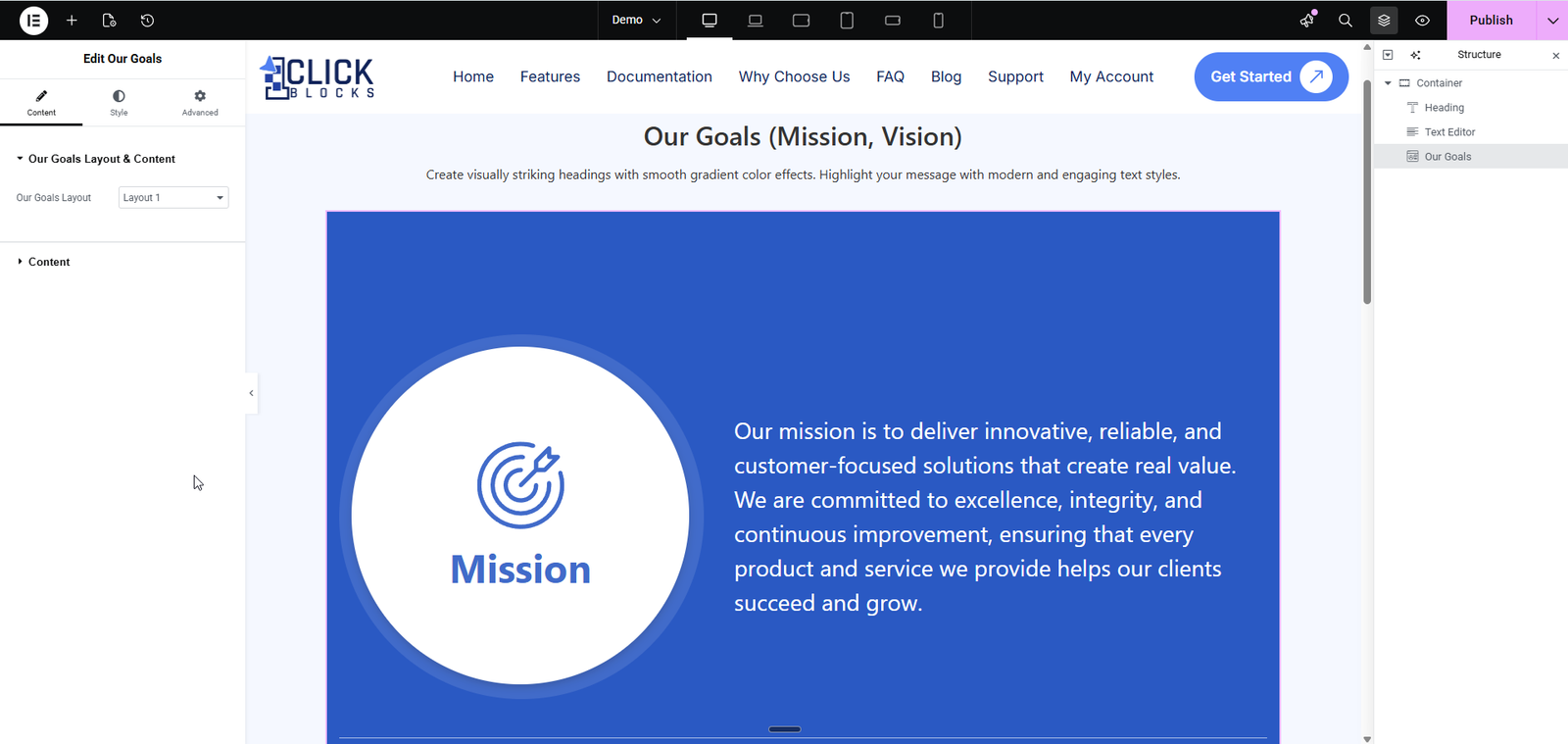
Use this dropdown to choose your preferred pre-built design layout for the widget. There are multiple layouts available — for example, Layout 1, Layout 2, Layout 3, Layout 4, and Layout 5. Switching layouts updates the live preview instantly in the canvas without deleting any of your entered content. Each layout presents your goal items in a different visual style — from alternating rows to card grids to split panels.
This toggle controls the visibility of the section title and image area at the top of the widget. Turn it on to display the section heading and image, or off to hide them and show only the goal items list.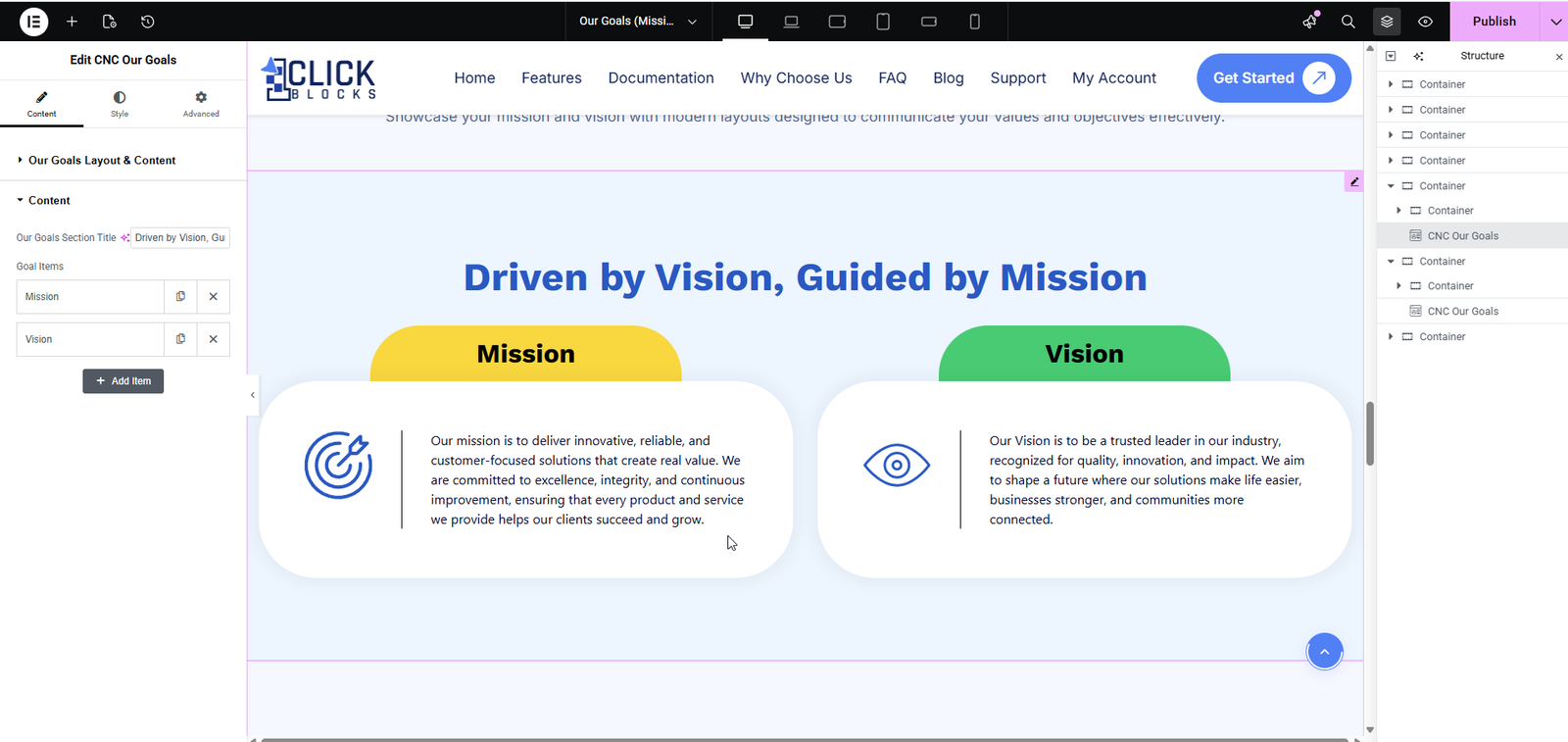
Enter the main heading text for the goals section — for example, “Our Mission”. This title is displayed prominently in the section header area, particularly visible in split-panel layouts like Layout 4.
Select whether to display an icon or a custom image as the section-level visual. This applies to the overall section header, not to individual goal items.
Upload or select a custom image to represent the entire goals section. This image is displayed in the section header area — for example, a 3D graphic of goal blocks or a professional business image that complements your layout.]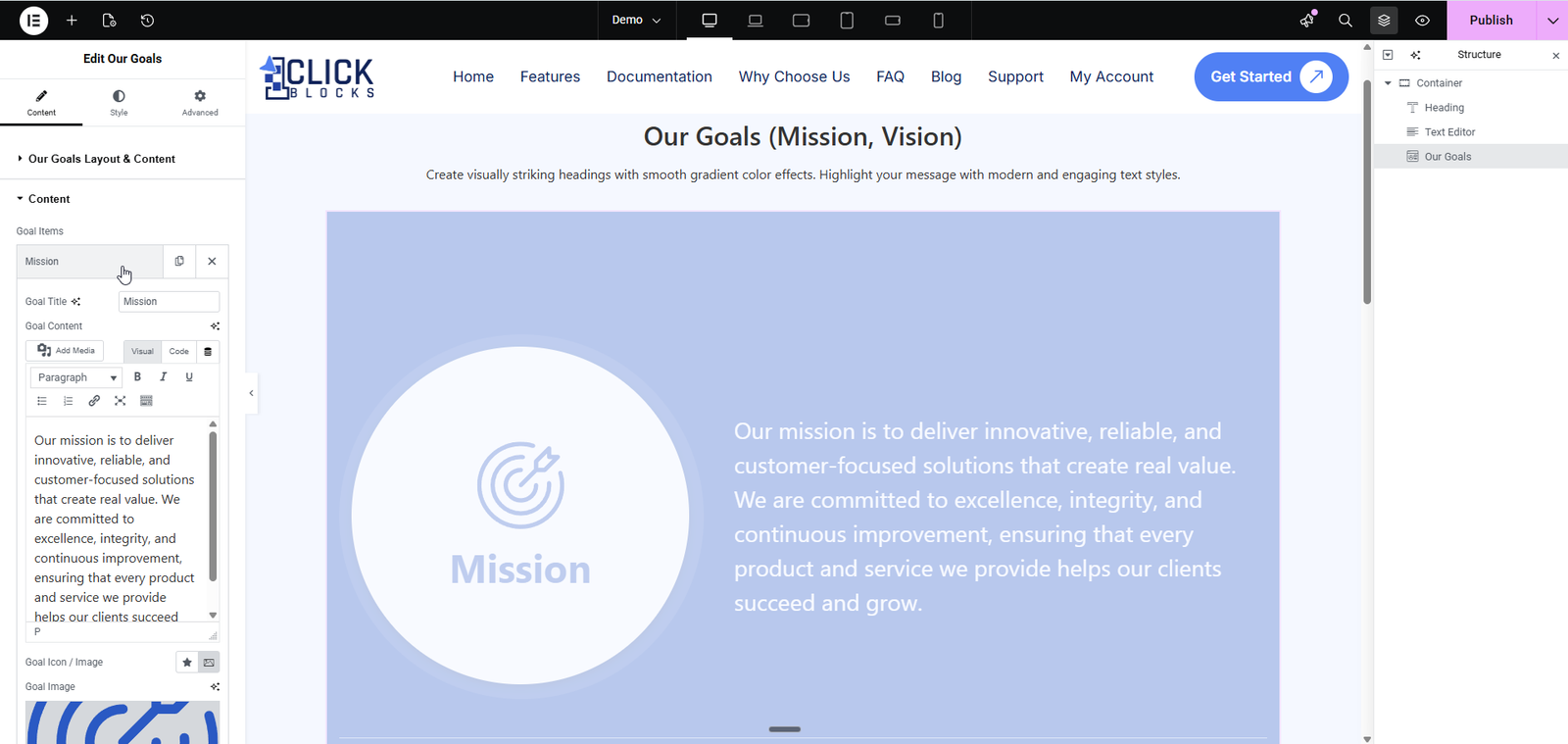
This toggle controls whether the individual goal items list (Mission, Vision, Values, etc.) is visible on the canvas. Use this to temporarily hide the items while editing the section header, or to create a cleaner preview.
This is a repeater field that lets you add, remove, and reorder multiple goal entries. By default, the widget comes with two items — Mission and Vision. You can add more by clicking “+ Add Item” and remove any item using the × button. Each item in the list can be expanded to configure its individual settings below.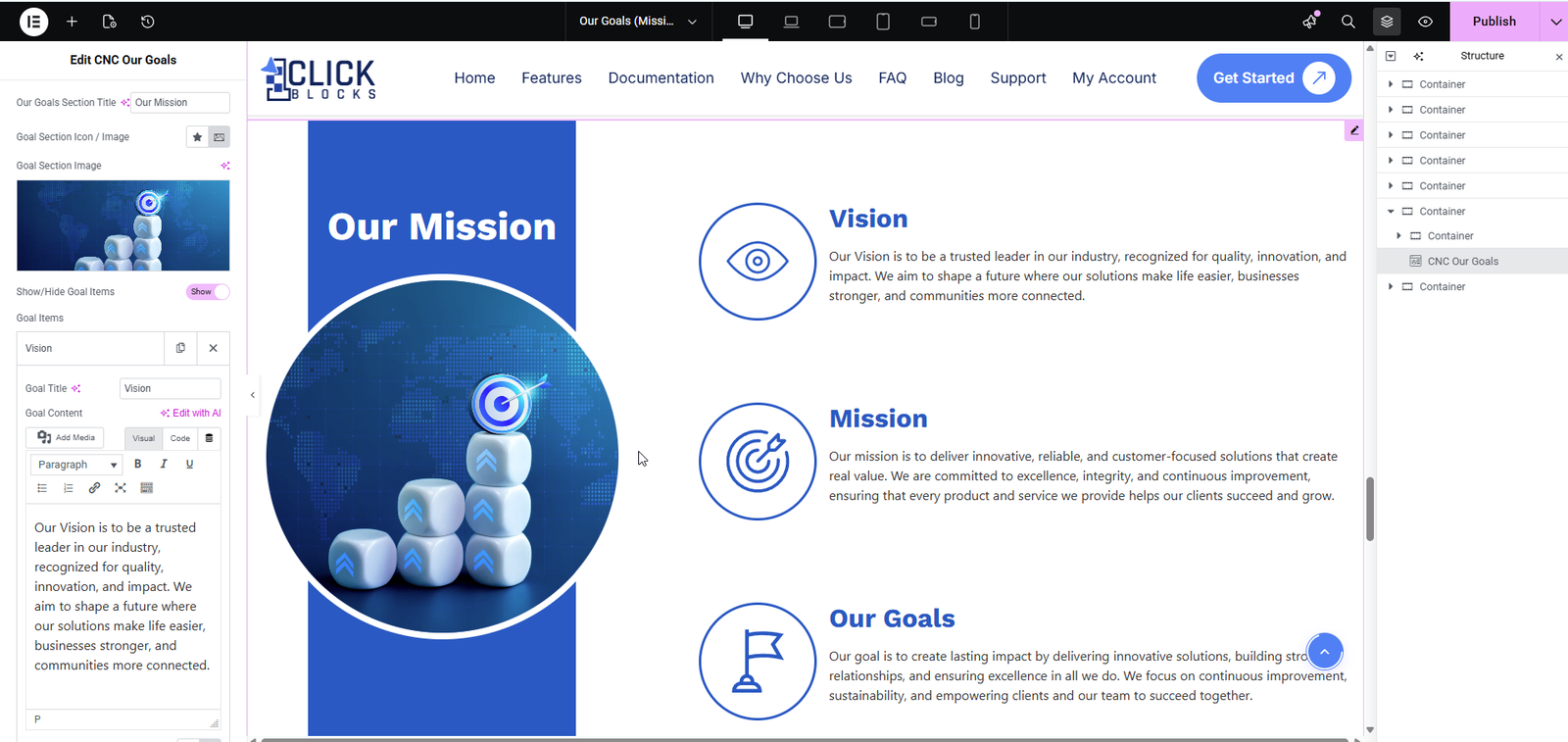
Enter the name of the individual goal item — for example, “Mission”, “Vision”, “Our Goals”, or “Our Values”. This title is displayed as the heading for that specific goal card or row in the canvas.
Write the description or explanation for the individual goal item using the built-in rich text editor. You can apply formatting such as bold, italic, bullet lists, and hyperlinks. For example, enter your company’s mission statement or vision paragraph here. The editor supports both Visual and Code (HTML) input modes.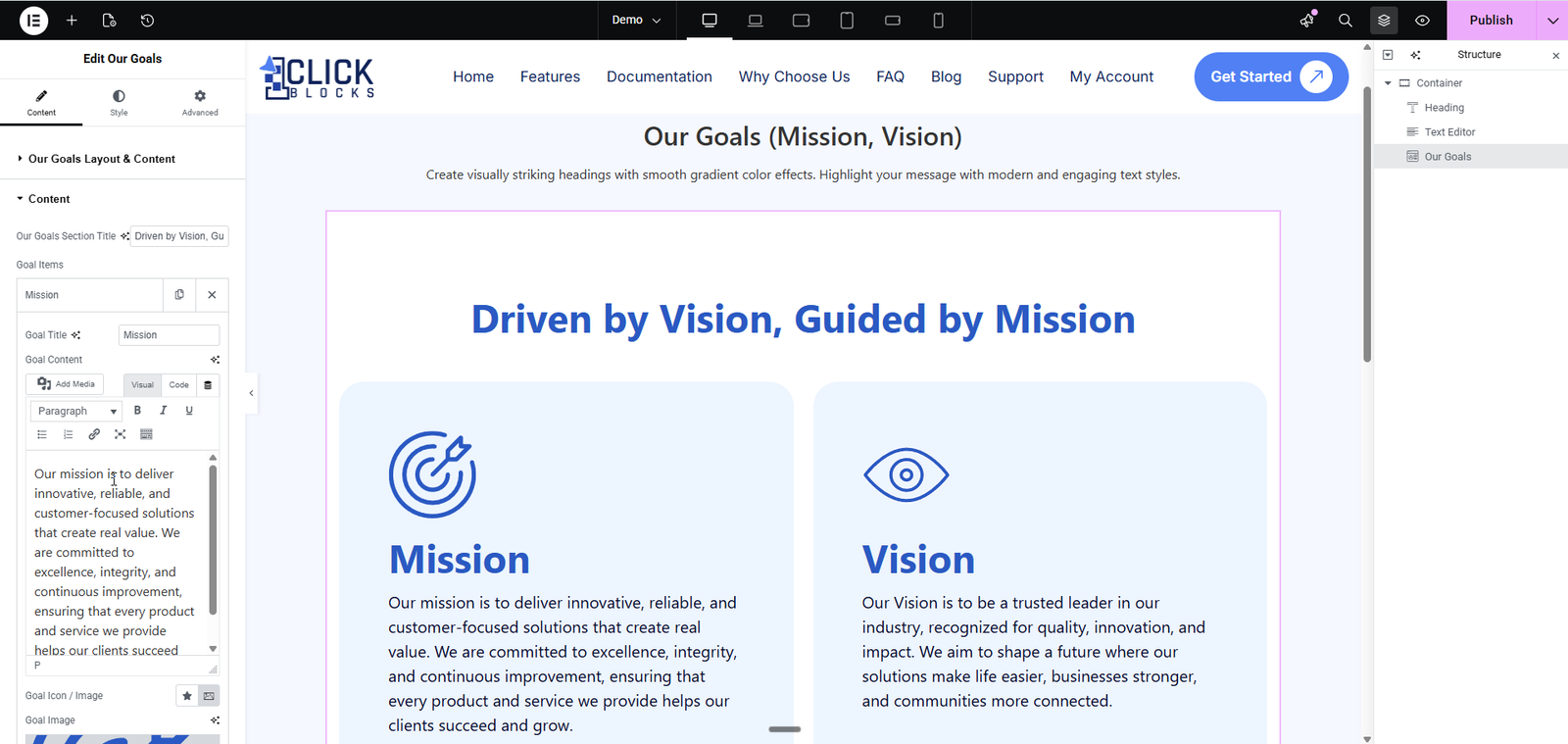
Choose whether to display an icon or a custom image for this individual goal item. This controls the visual element shown alongside the goal title and content — for example, a target icon for Mission or an eye icon for Vision.
Upload or select a custom photo or image for this individual goal item. This is particularly impactful in photo-based layouts such as Layout 5, where each goal card displays a circular cropped image — for example, a dart-on-target photo for Mission or a professional office photo for Our Values.