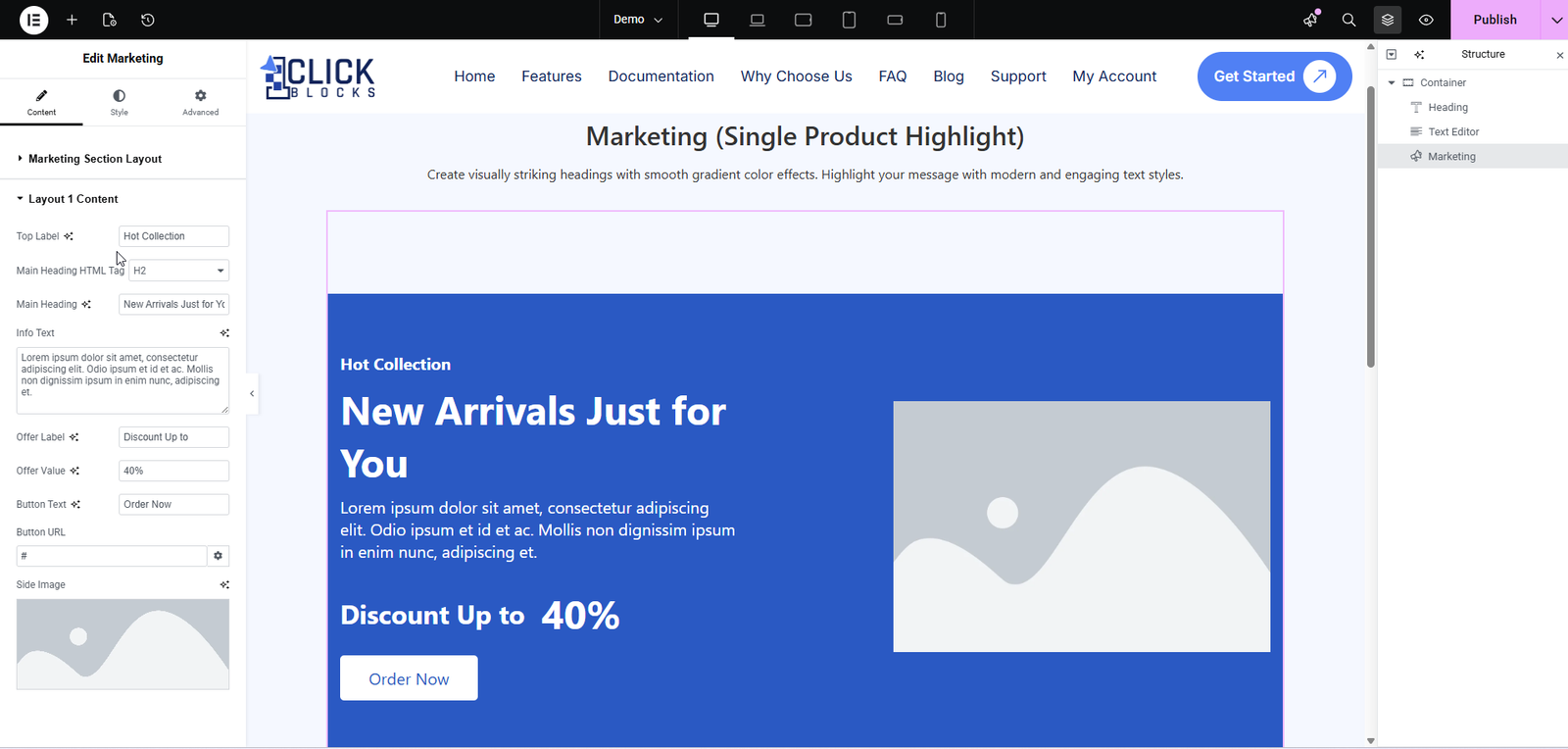
The Marketing widget from OneClickBlocks is a powerful Elementor block designed to help you create visually engaging product highlight sections, promotional banners, and marketing cards. With five pre-built layout options, you can showcase single products, category collections, or special offers — all with customizable labels, headings, images, discount tags, and CTA buttons. Whether you’re promoting a sale, a new collection, or a featured item, this widget gives you full creative control to match your brand’s look and feel.
Follow these simple steps to add the Marketing widget to your Elementor page:
Step 1: Open the page you want to edit in Elementor.
Step 2: In the left panel, click on the Plus (+) icon to open the Elementor Widgets panel.
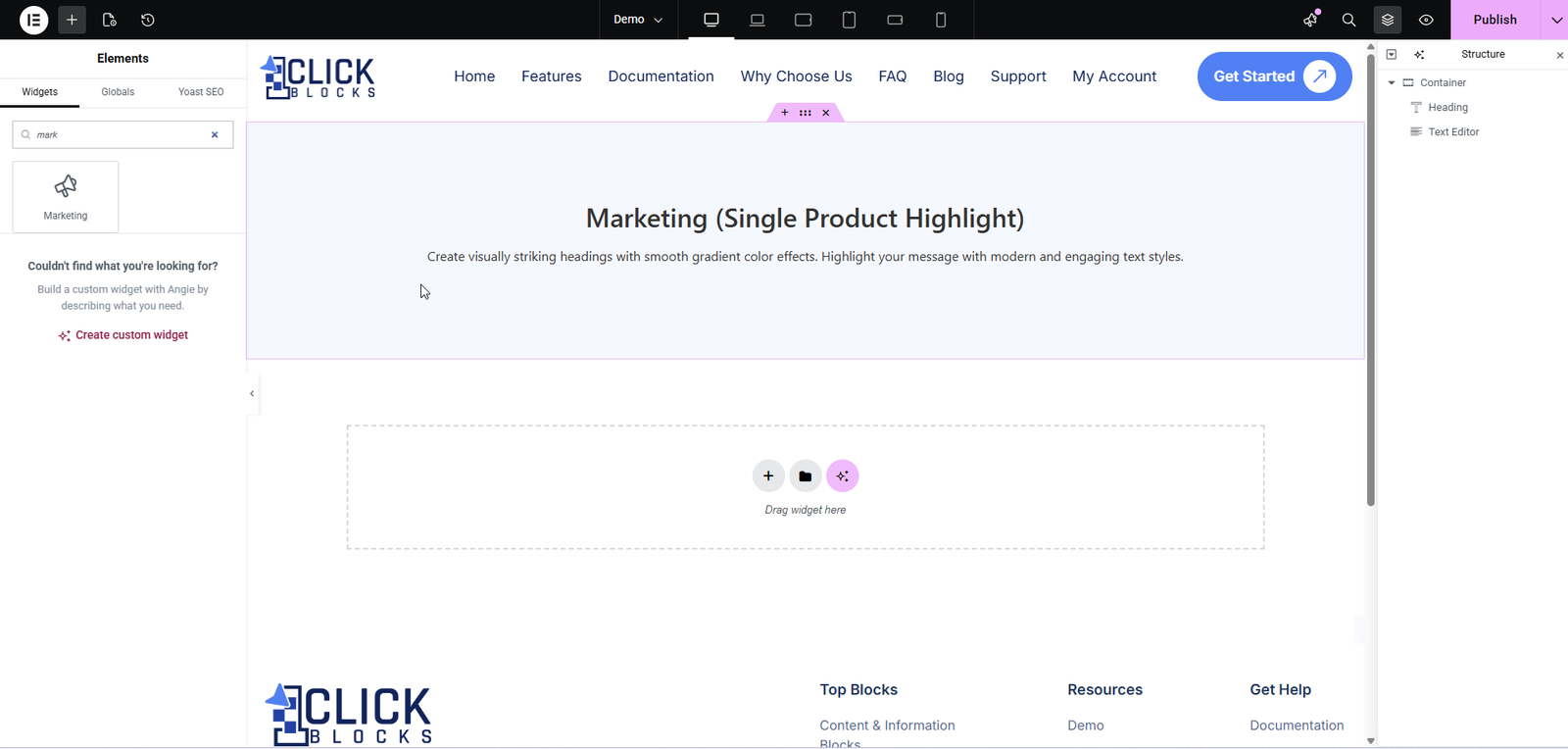
Step 3: Scroll down or search for OneClickBlocks in the widgets list.
Step 4: Locate the Marketing widget icon and drag it onto your page’s canvas area.
Step 5: The widget will drop and load with a default layout. You can now start customizing it using the options in the left-hand editor panel.
After adding the widget to your page, click on it to open the Edit Marketing panel. Under the Content tab, you will find the following settings:
Choose from five pre-designed layout styles to define the structure and appearance of your marketing section. The available options are:
Layout 1: Full-width banner with label, heading, description, discount counter, button, and image on the right.
Layout 2: Three-column product grid with heading, discount badges, and individual product cards.
Layout 3: Bold full-width section with label, heading, sub-label, description, and CTA button on a colored background.
Layout 4: Split-content card with label, heading, sub-label, description, button, discount tag, and product image.
Layout 5: Clean centered layout with heading, description, button, and product image below.
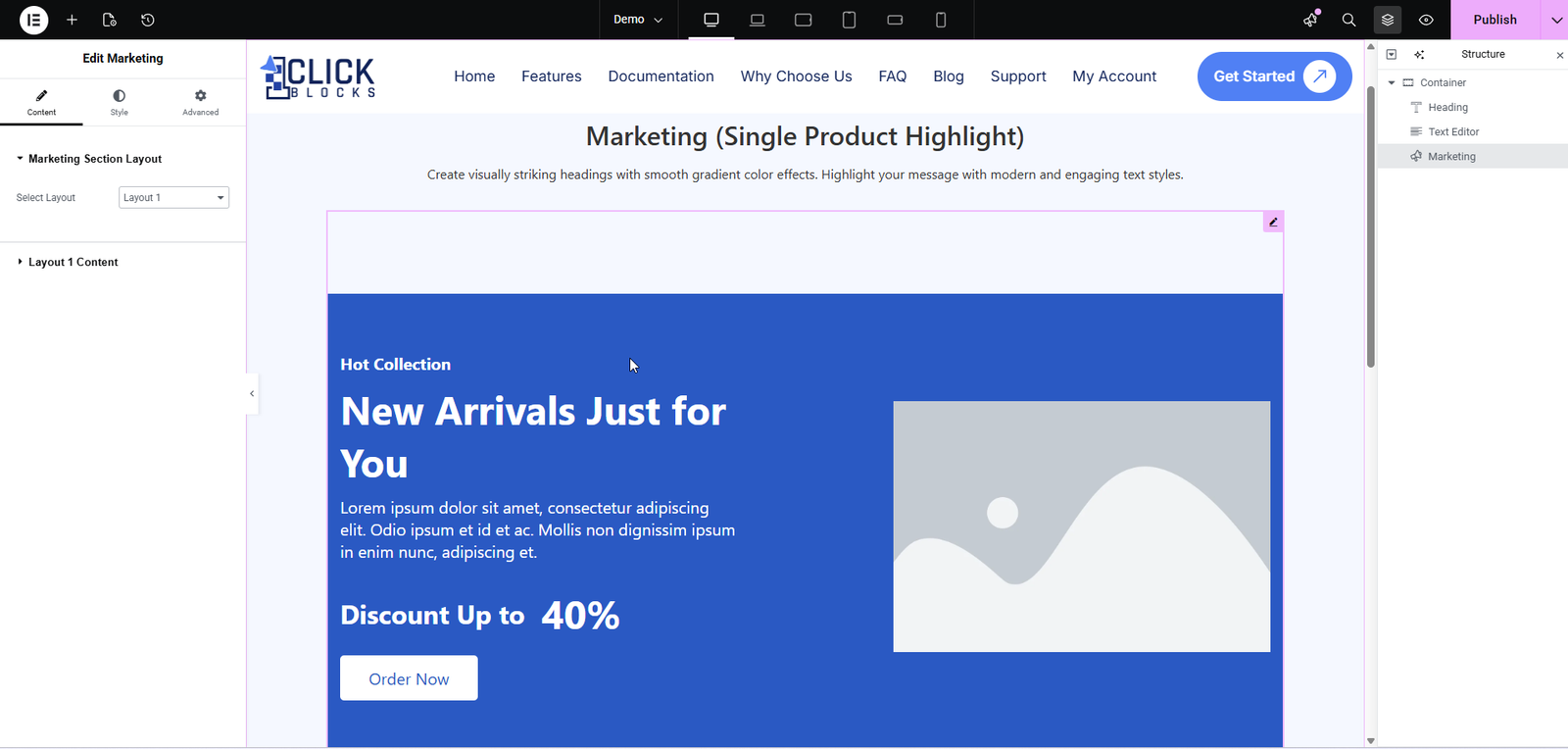
Select the HTML heading tag for your main heading. Choose from H1, H2, H3, H4, H5, or H6 for SEO structure.
Enter the primary heading text for your marketing section, for example: New Arrivals Just for You.
Write a short description or promotional message that appears below the main heading.
Add the discount percentage text, such as Count Up to 40%, which displays prominently in the banner.
Enter the text for your call-to-action button, for example: Order Now or Shop Now.
Paste the link that the CTA button should redirect to when clicked.
Upload the product or promotional image that appears on the right side of the Layout 1 banner.